
Developing a Tool Using Tool Designer
On this page
Developing a Tool Using Tool Designer
Create custom tools with specific functionality using the Tool Designer’s Code Runner feature in Arivonix.
Accessing the Tool Designer
To access and work with the Tool Designer:
- Log into the Arivonix application.
- Navigate to AI forge Studio.
- Select the Tools Designer tab.
- Search for your desired tool or create a new one.
This guide uses a pre-created tool named Named Entity Recognition, which is a Code Runner tool developed using Python functions.
Editing a Code Runner Tool
- Locate your tool in the Tool Designer.
- Click on Edit for the Code Runner tool.
- This opens the editing interface.
Working with Code Cells
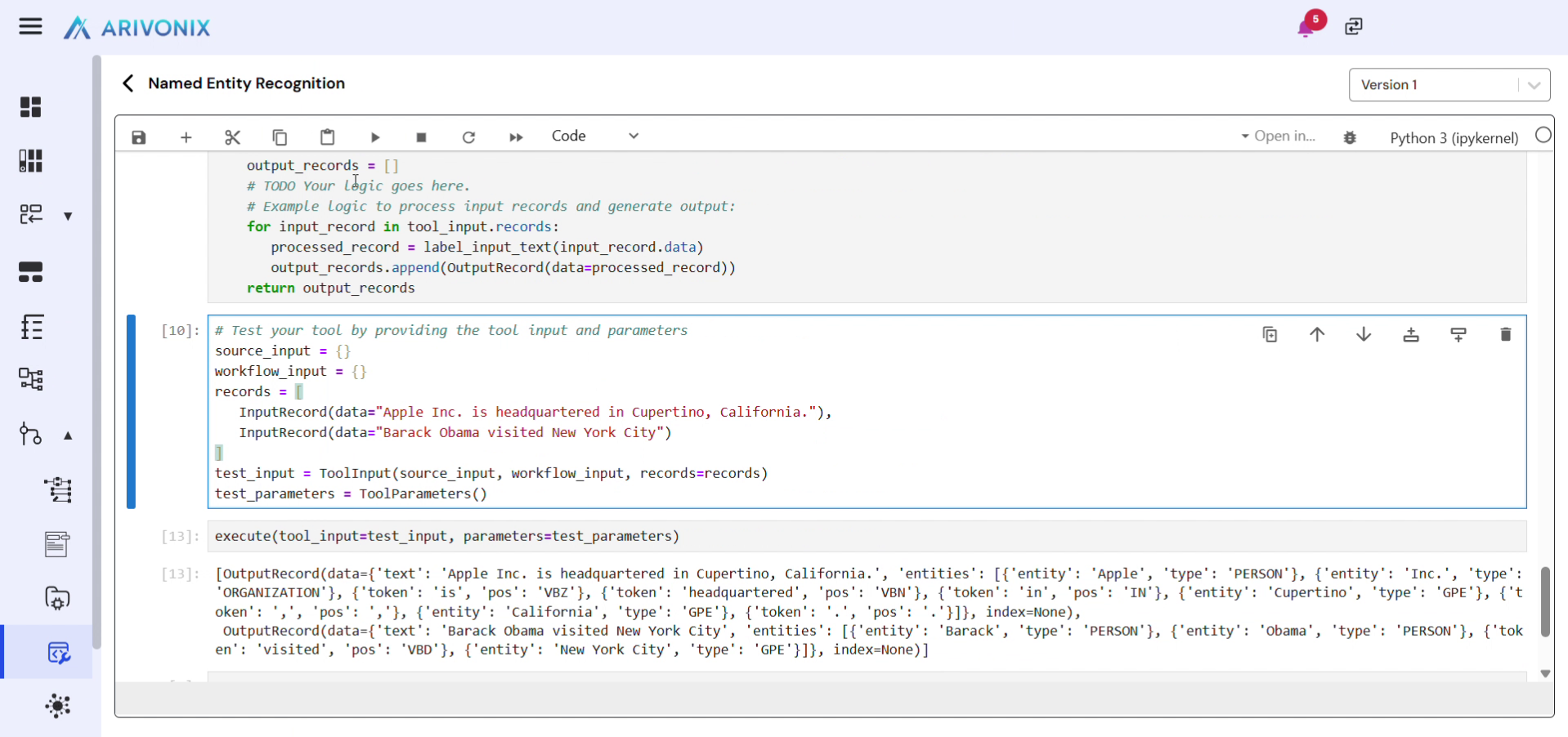
When the Code Runner opens, you will see predefined cells with template code:
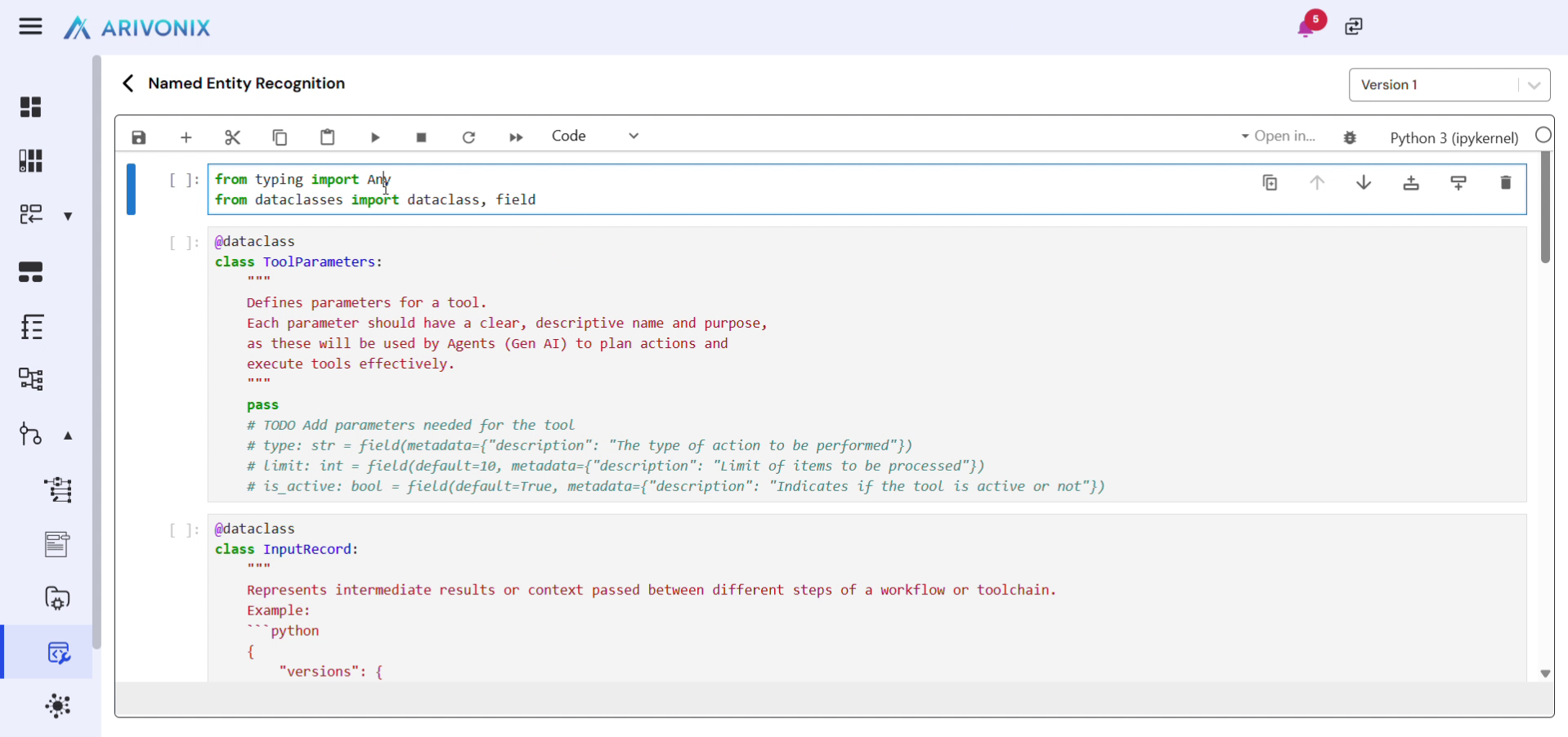
- Click on a cell to select it.
- Use the Run button to execute the selected cell.
Tool Structure
- Tools Parameters Class: Define any parameters needed for the tool.
- Example: Adding a mandatory parameter called Type.
- Parameter values are accepted from users when the tool is used.
- Input Record and Output Record Classes: Predefined classes that typically don’t need modification.
- Execute Method: The main method where custom logic is implemented.
Installing External Packages
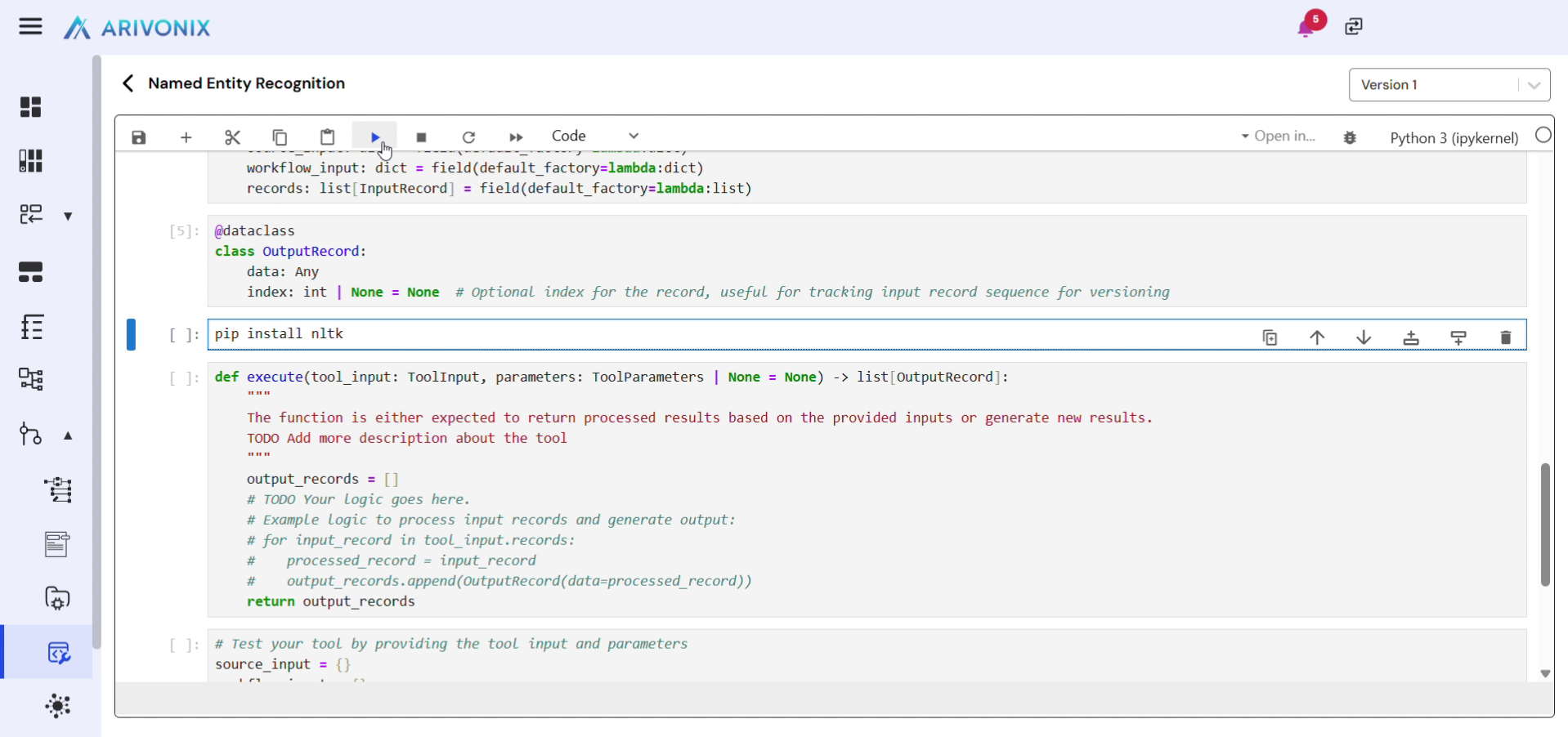
To add external packages required by your tool:
- Add a new cell with a pip install command (e.g., for NLTK package).
- Click the Run button to install the package.
Adding Custom Code
- To add a new cell, click the Plus button.
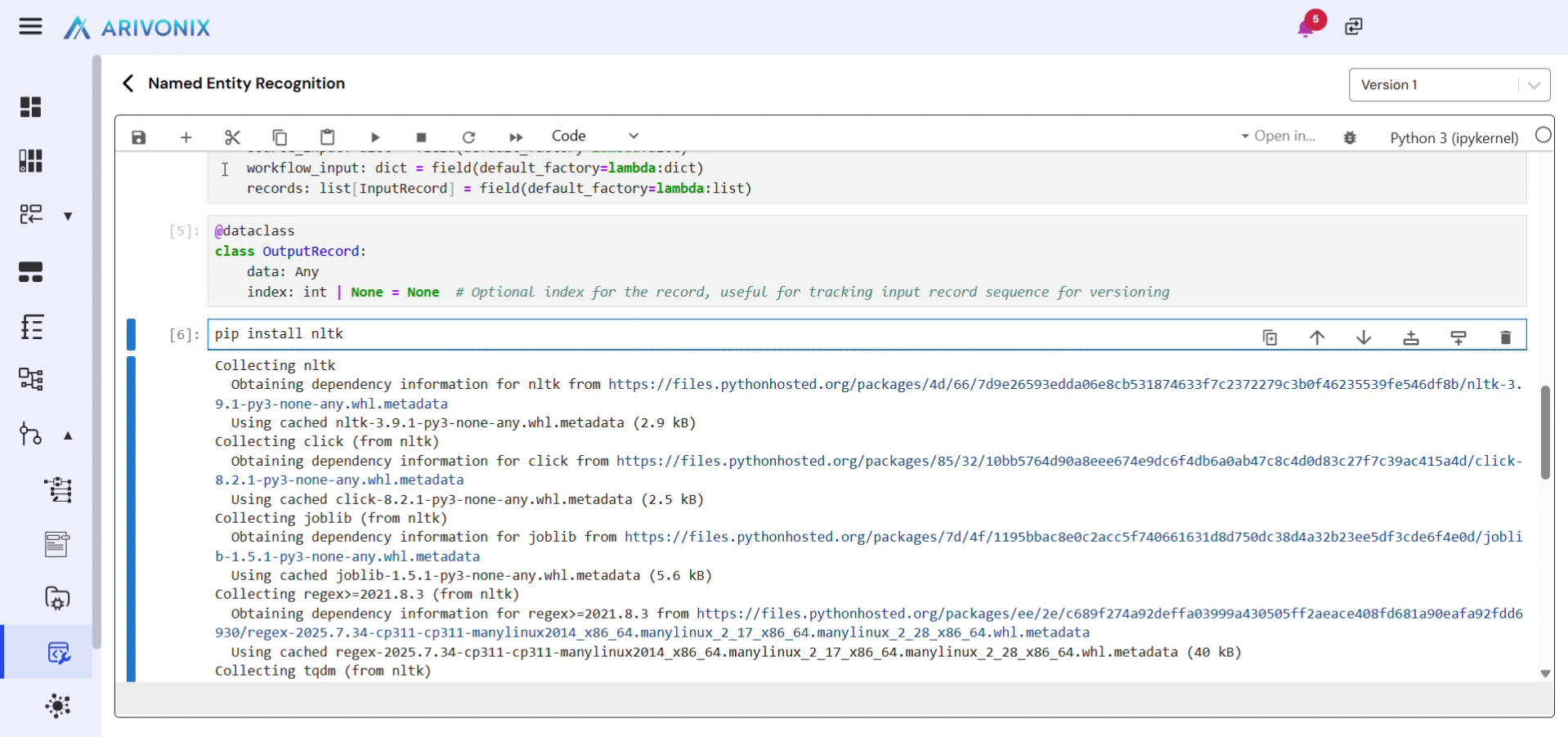
- Create necessary methods for your tool’s functionality (e.g.,
LabelInputTextmethod for named entity recognition). - Modify the Execute method to process inputs and return results.
- Run the cell to test the method with sample inputs.
Understanding Tool Inputs
The Code Runner tool can process three types of inputs:
- Source Input: When a tool is used inside the Agentic AI Designer within Dataforge Studio’s Pipeline Designer, the input to the agent is considered the source input.
- Workflow Input: Parameters added to an agent for its execution. Use workflow inputs to utilize any Agentic parameters inside the tool runner.
- Records Input: Data passed from previous nodes in an Agentic AI Designer workflow. For example, when a previous node returns a list of strings as input to the current tool.
Saving and Versioning
- After completing development, click the Save button at the top to save your code.
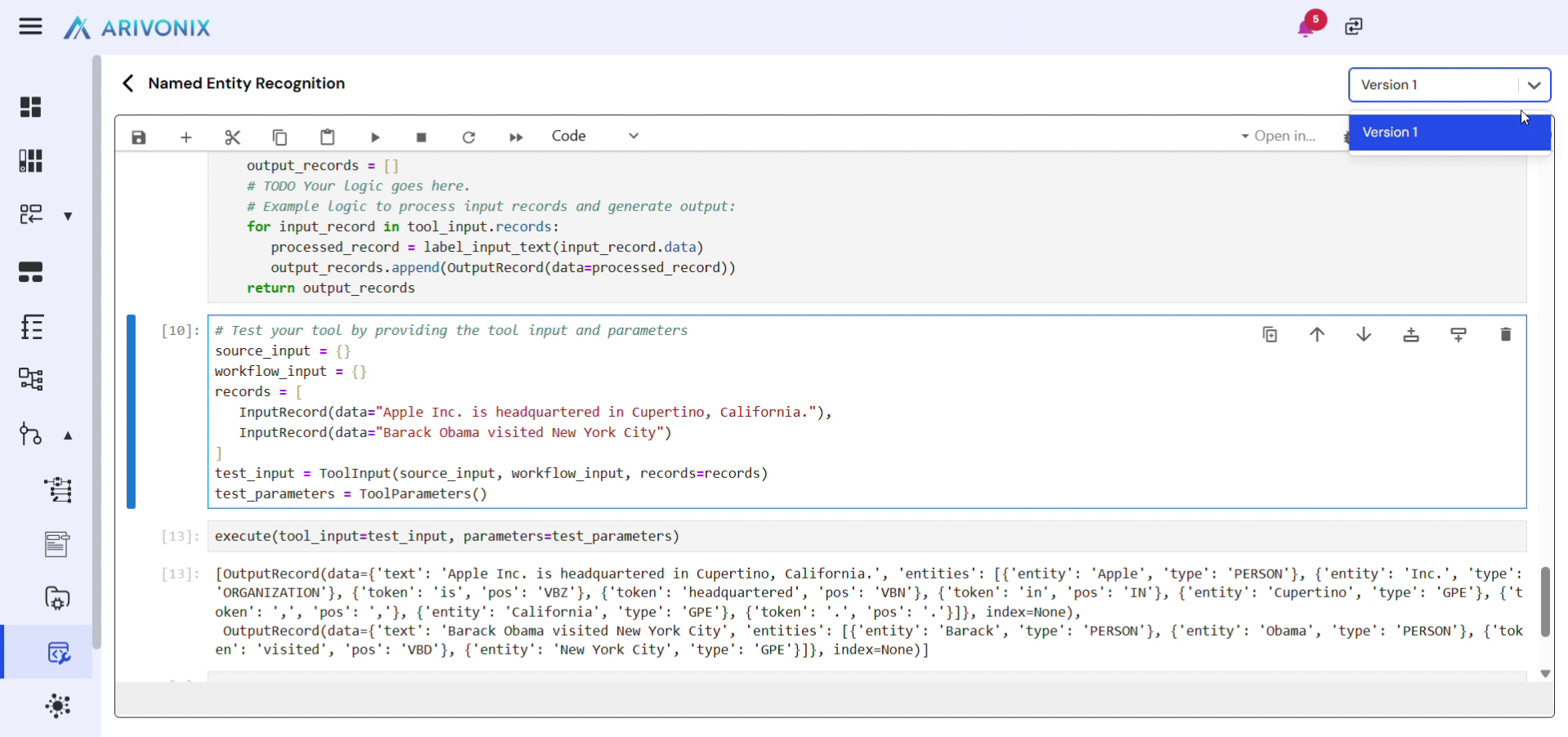
- View the list of saved versions in the top right corner.
- To roll back to a previous version, click on the appropriate version.
Summary
The Tool Designer provides a structured environment for developing custom tools with:
- Predefined code templates that can be customized with specific logic.
- Multiple input types for seamless integration with the Agentic AI Designer.
- Code saving and versioning capabilities for managing development changes.