

Starting, Stopping, and Editing Clusters
On this page
Starting, Stopping, and Editing Clusters
Manage cluster operations including starting, stopping, and modifying cluster configurations to adjust resources as needed.
Stopping a Cluster
To stop an active cluster:
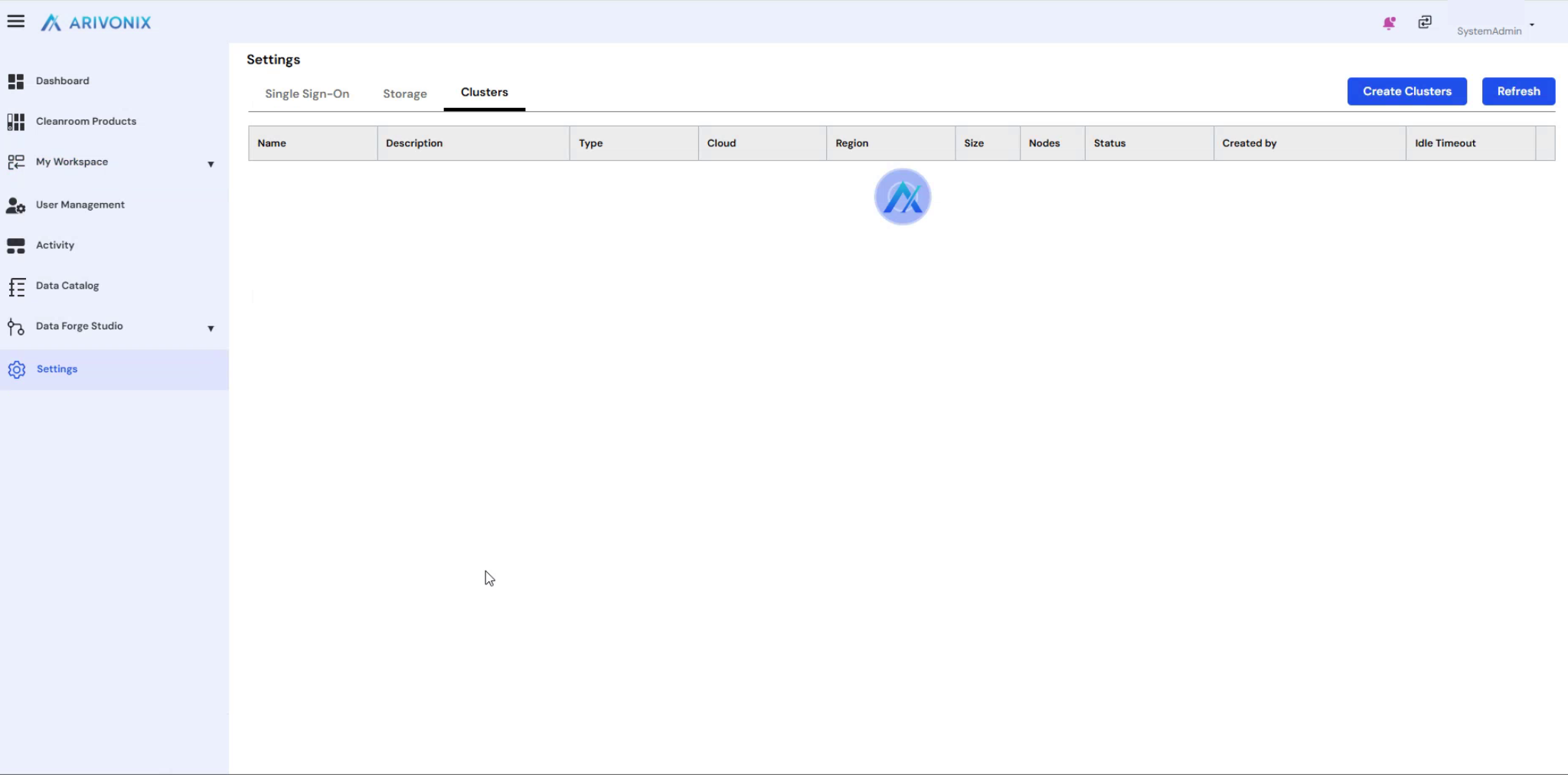
- Navigate to the Cluster tab where all clusters are listed.
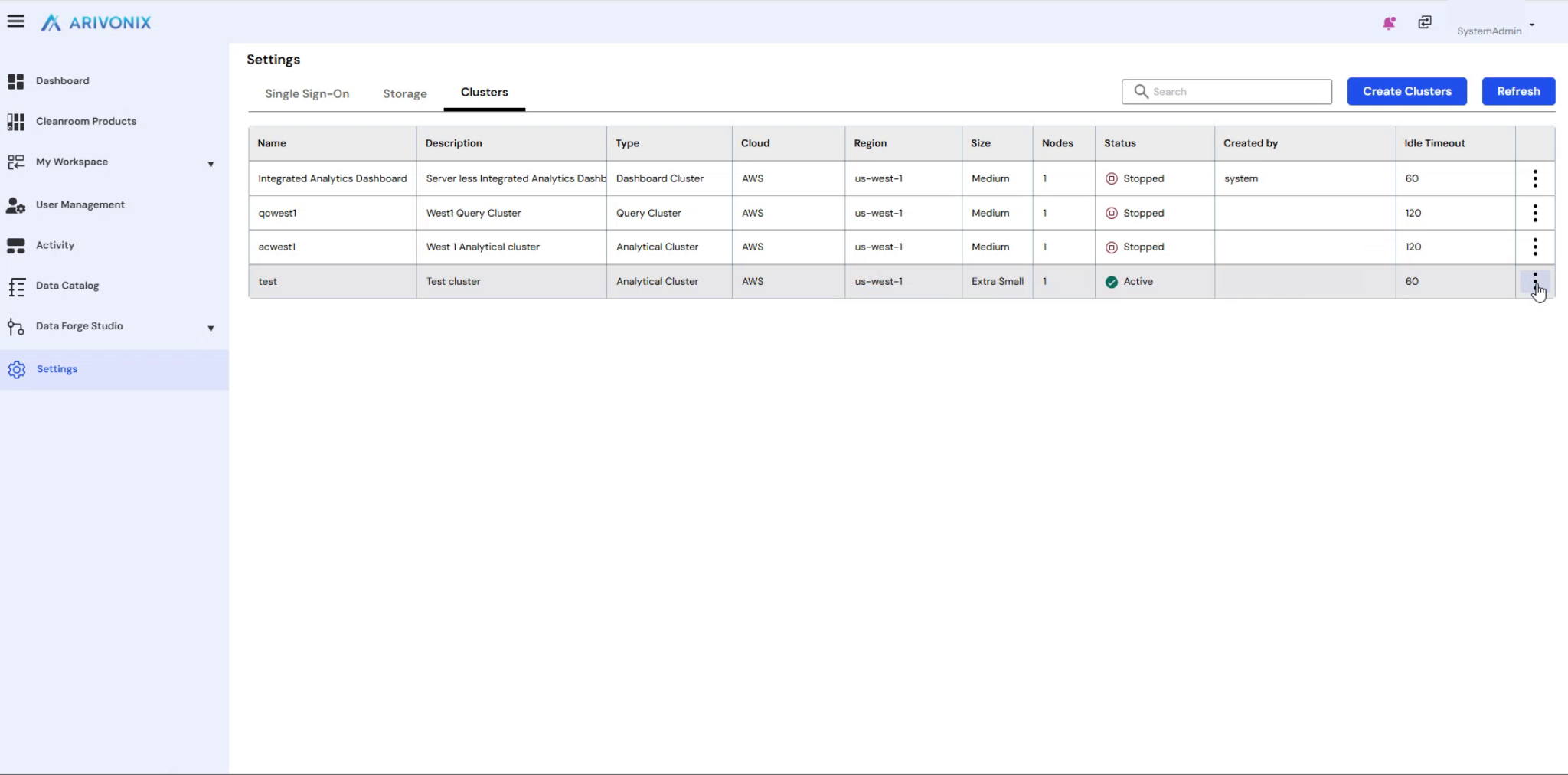
- Locate the specific cluster to be stopped.
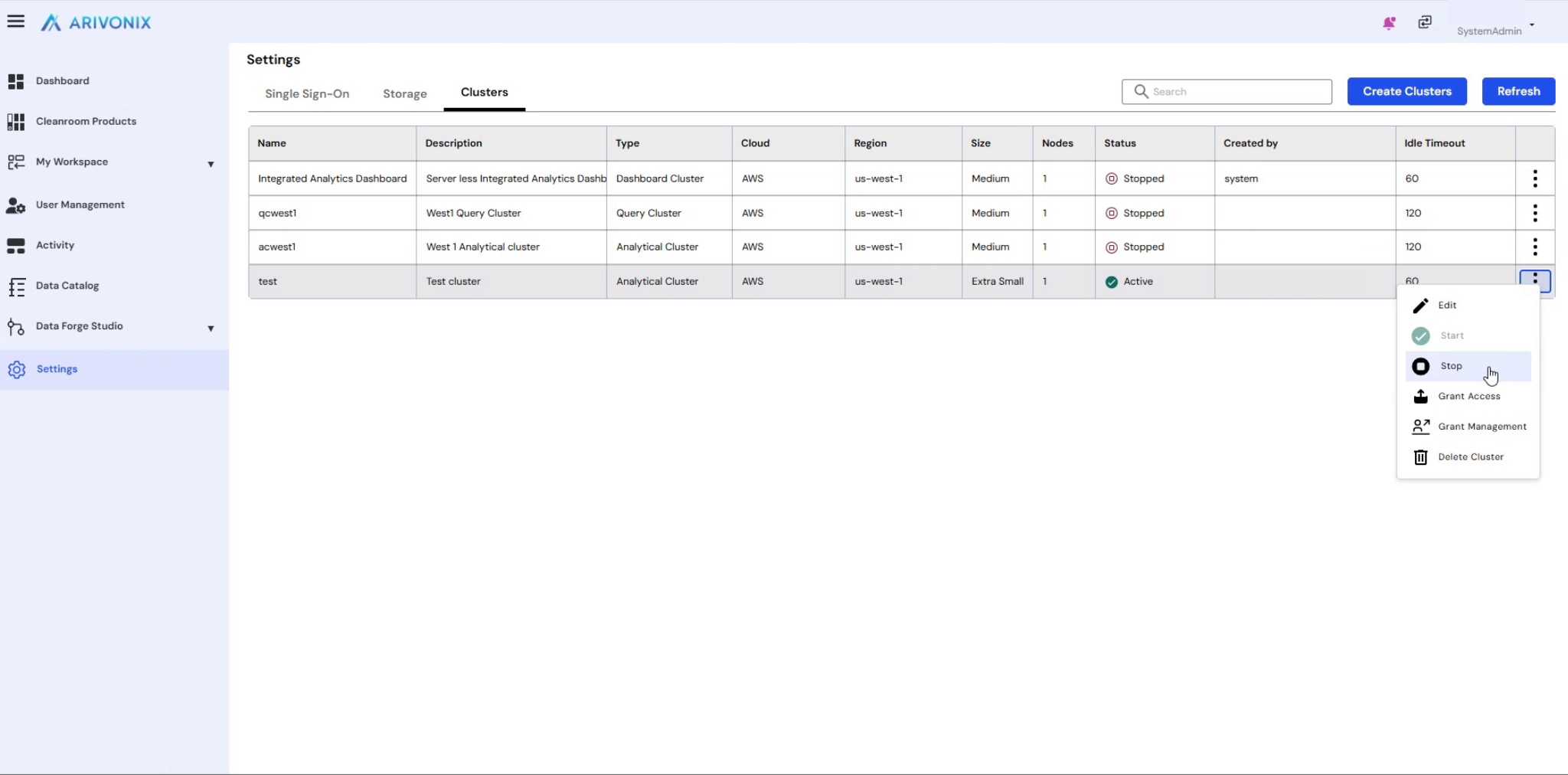
- Click the three-dotted icon next to the cluster.
- Select Stop from the dropdown menu.
- Enter the name of the cluster to confirm the action.
The system will process the request and stop the cluster operation.
Editing a Cluster
After stopping a cluster, it can be edited to adjust its configuration:
- Click the three-dotted icon next to the stopped cluster.
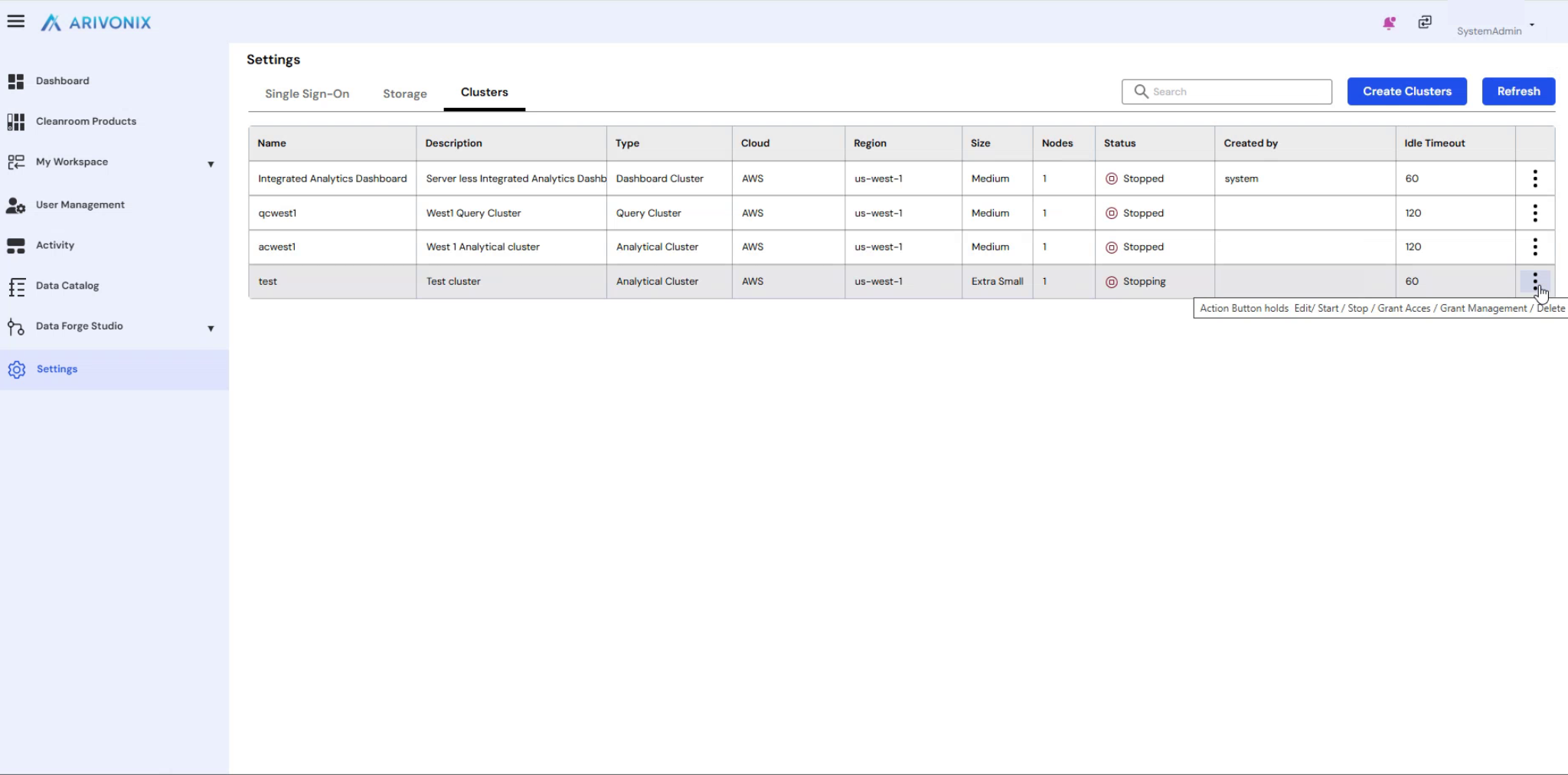
- Select Edit from the dropdown menu.
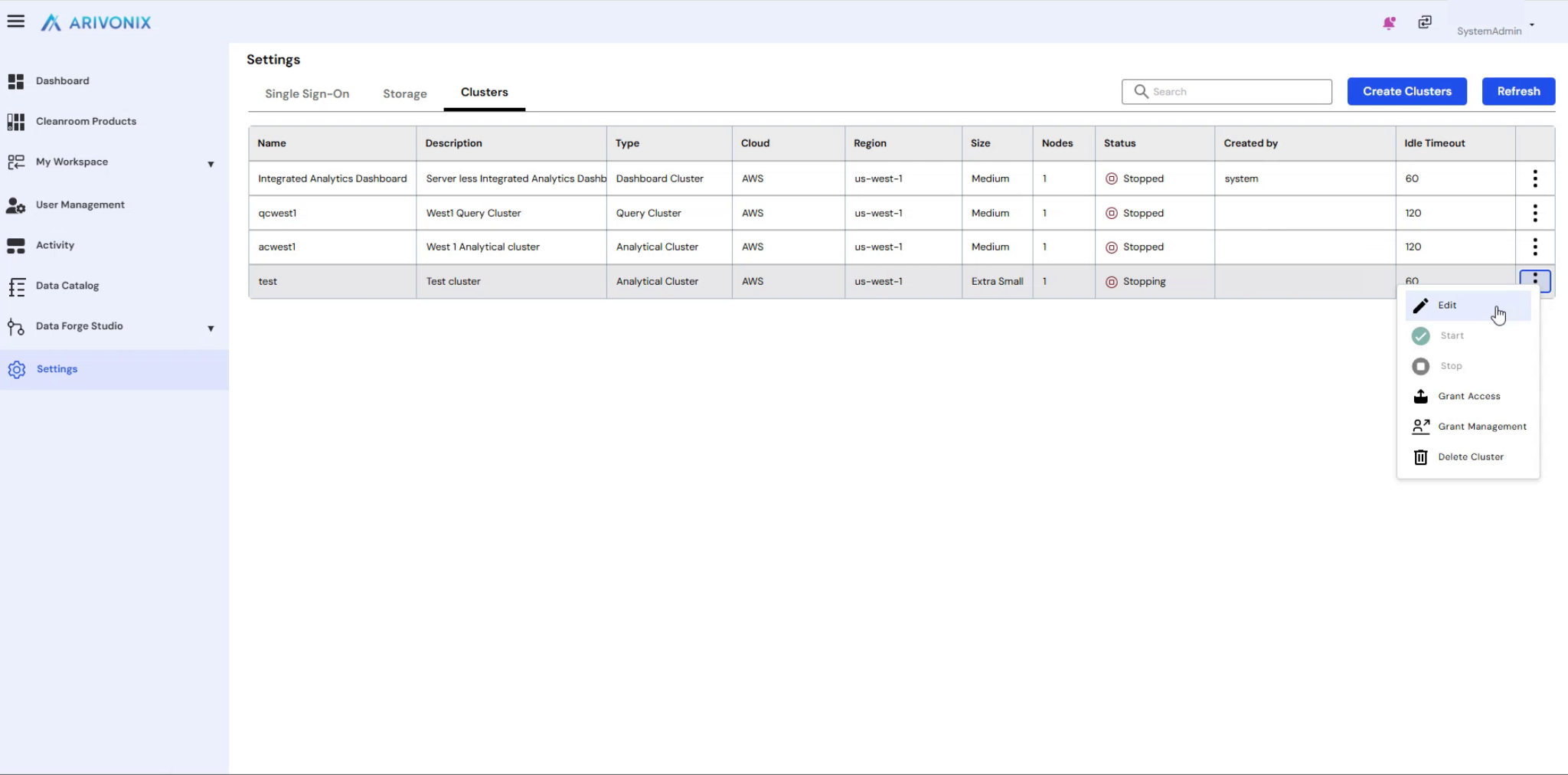
- Make the necessary modifications to the cluster configuration. For example, adjust the Number of Nodes from 1 to 2.
- After making all required changes in the Edit screen, click the Update button.
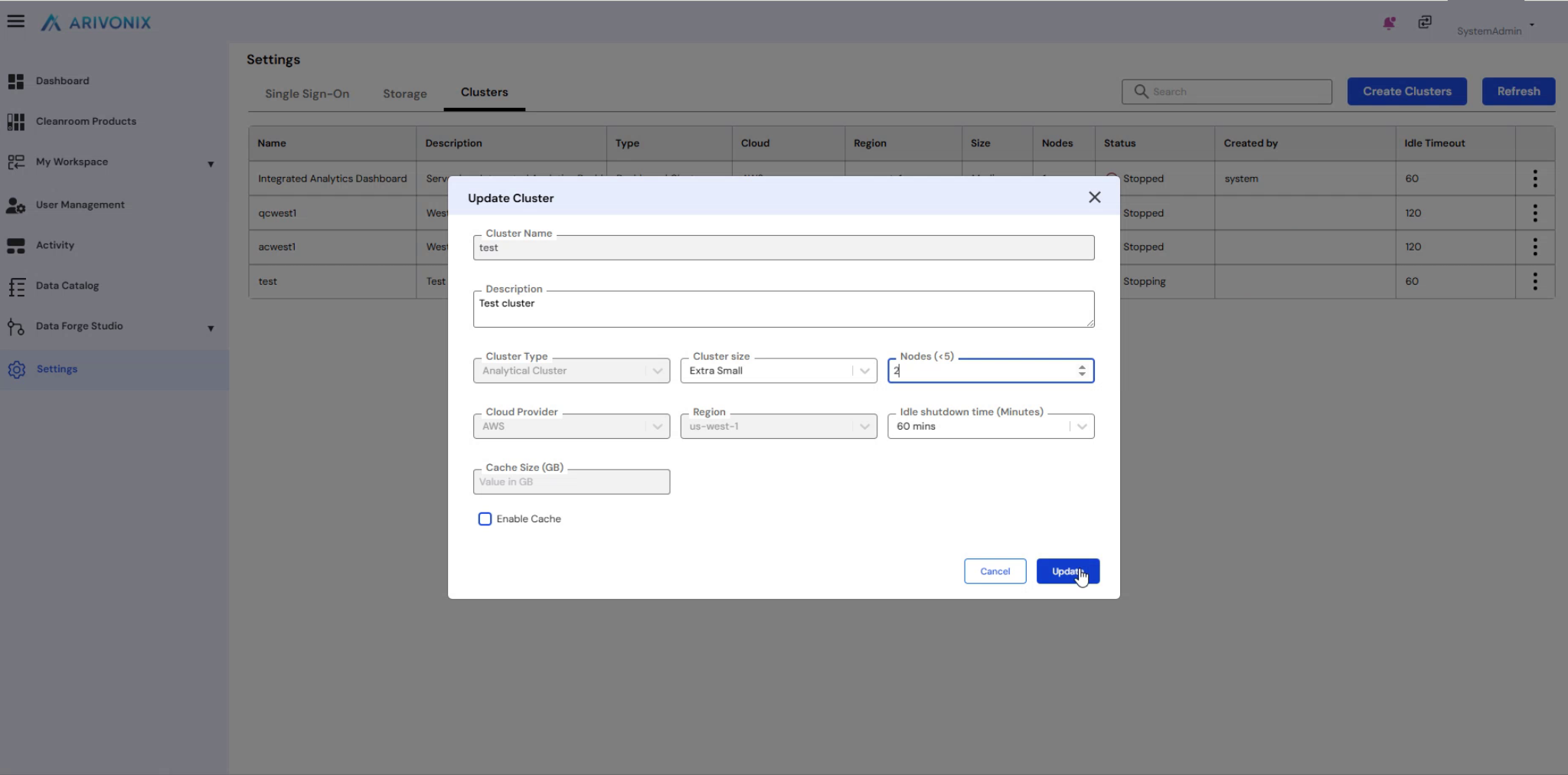
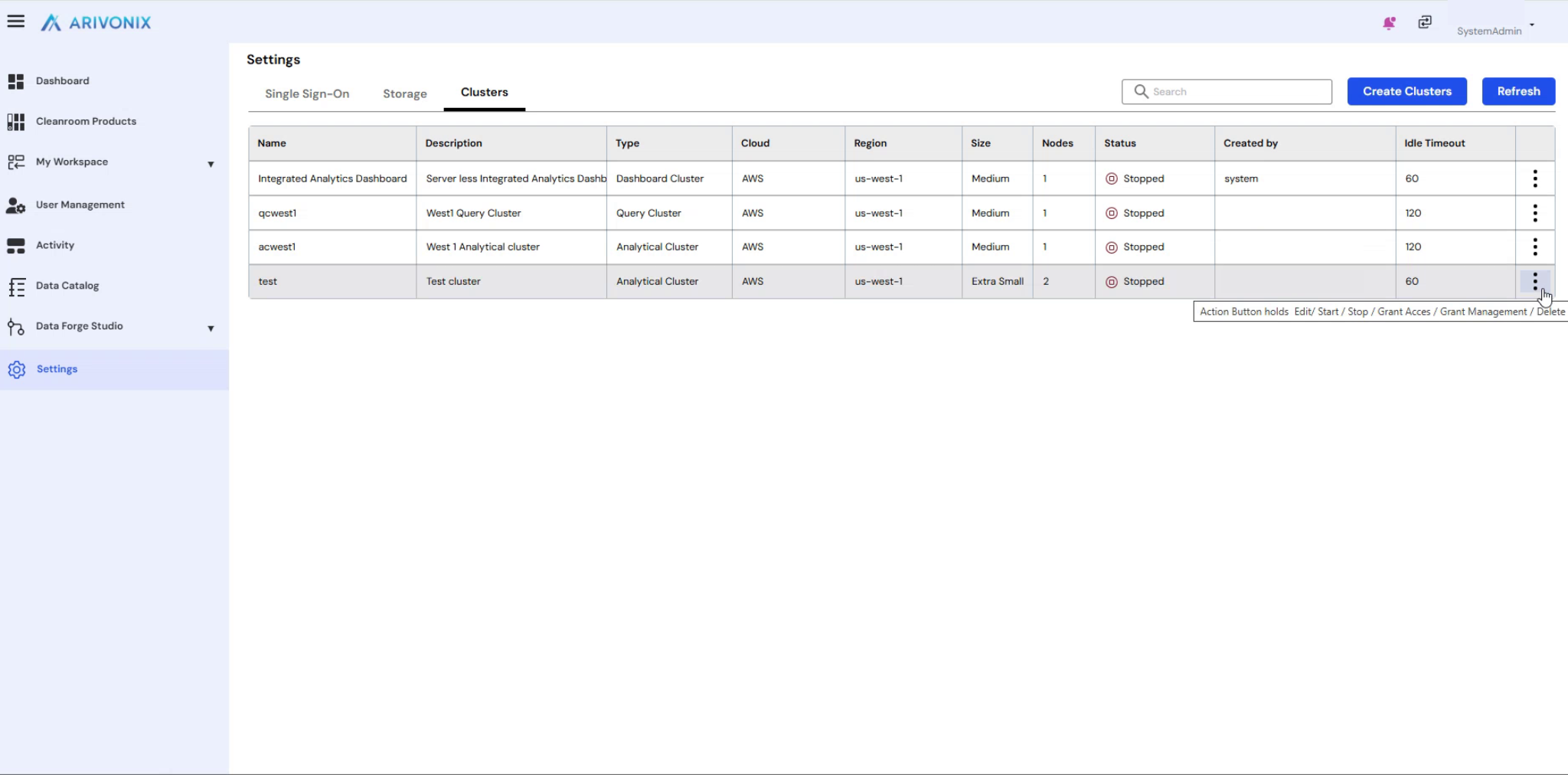
The cluster will be updated with the modified configuration parameters.
Starting a Cluster
To start a stopped cluster:
- Click the three-dotted menu icon next to the cluster.
- Select Start from the dropdown menu.
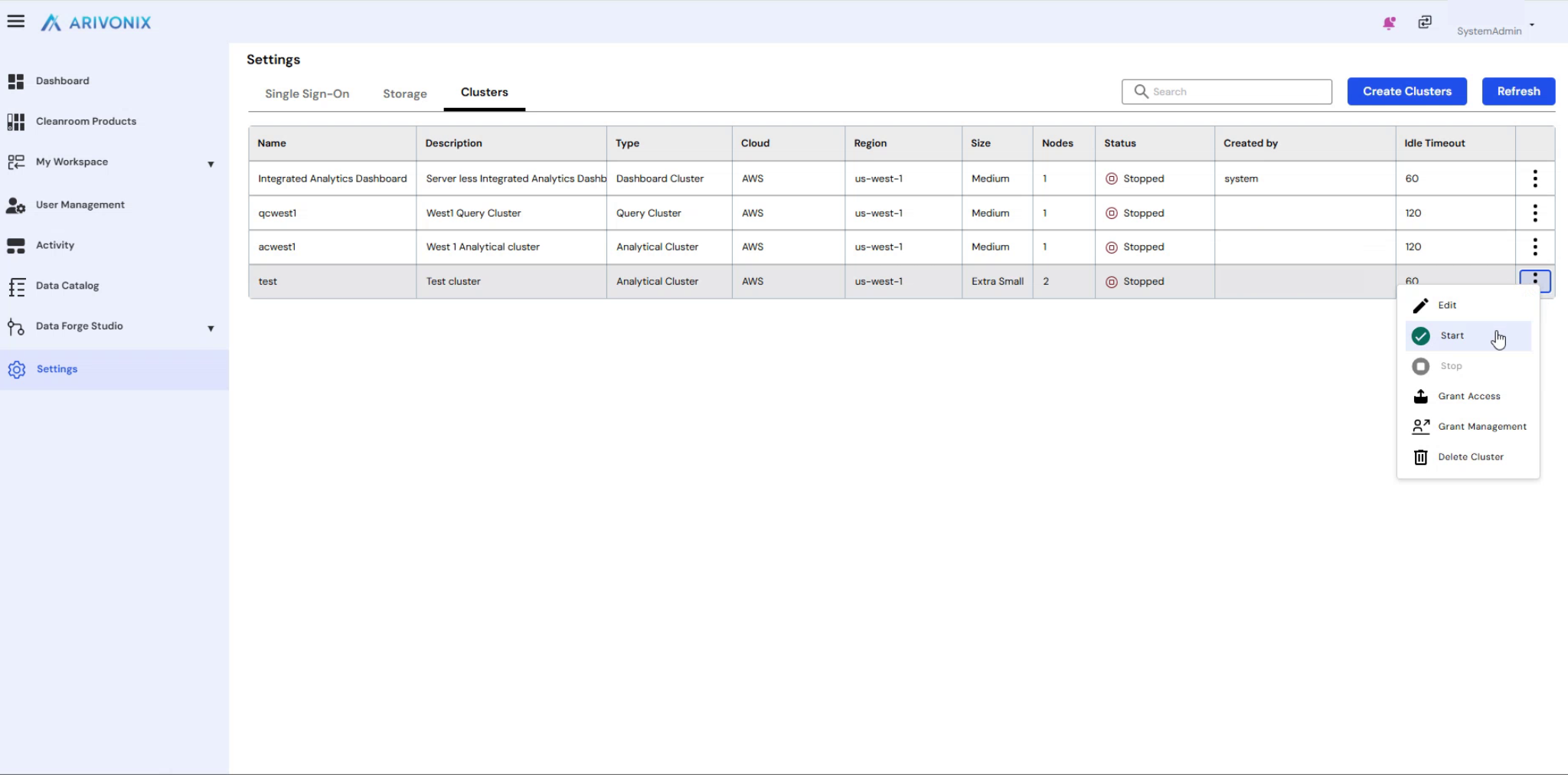
- Enter the name of the cluster to confirm the action.
- The cluster will begin the startup process.
Users can refresh the page to monitor the cluster creation progress. When complete, the cluster status will display as Active, indicating it is ready to use.